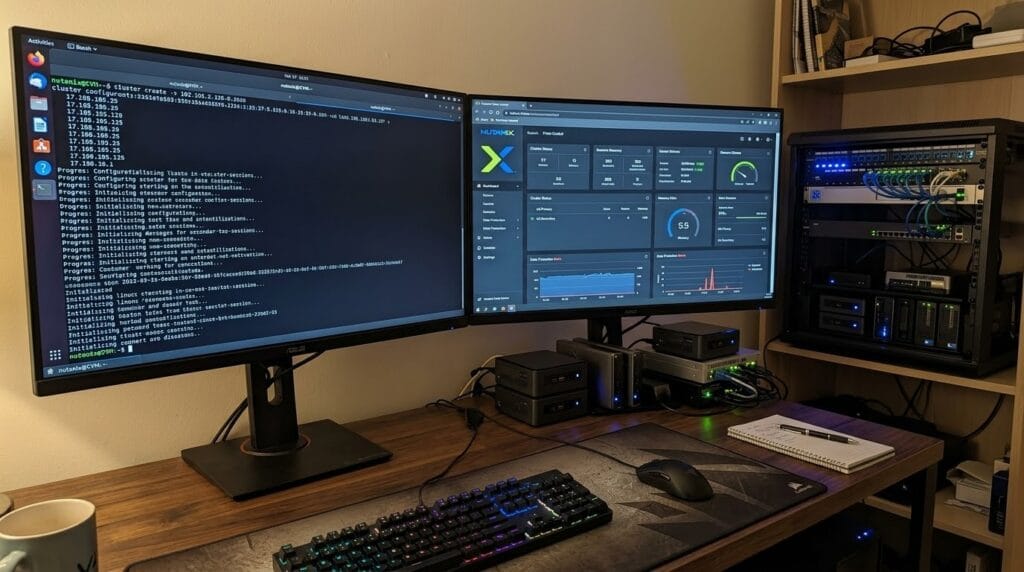
Evaluating enterprise multi-site replication, Availability Zones (AZ), and automated disaster recovery typically requires substantial rack space and physical servers. Nutanix Community Edition (CE) allows cloud engineers and architects to deploy a fully functional Enterprise Cloud Platform inside a home lab.
In this guide, we will build a dual-cluster nested environment on VMware vSphere consisting of:
- Two 3-node Nutanix CE clusters (simulating Primary and DR Availability Zones).
- One centralized Prism Central instance managing both clusters to orchestrate Protection Policies and Recovery Plans.
We will focus on the fundamental VM configuration parameters, including CPU nested virtualization flags, SCSI UUID requirements, cluster formation, and community licensing.
Prerequisites & Resource Planning
Running 6 nested Nutanix nodes plus Prism Central requires a dedicated physical host with adequate RAM and fast NVMe storage:
- Resource allocation per Node (x6 VMs):
vCPU: At least 4 vCPUs.
Memory: 32 GB RAM minimum (enables CVM + nested user workloads).
Disk 1 (Hypervisor Boot): 64 GB.
Disk 2 (CVM / Hot SSD Tier): 200 GB.
Disk 3 (HDD / Cold Capacity Tier): 500 GB (Thin Provisioned). - Prism Central VM: 4–6 vCPU, 26–32 GB RAM, 500 GB storage.
- IP Addressing:
2 IPs per node (1 for AHV hypervisor, 1 for CVM).
1 Cluster Virtual IP (VIP) per cluster (Cluster A and Cluster B).
1 IP for Prism Central. - Nutanix Community Account: An active account registered on next.nutanix.com. You must log in to the .NEXT community portal prior to deployment to ensure your account is in an active state for cluster licensing.
Step 1: vSphere Port Group Security Configuration
Before creating the nested VMs, adjust the VMware Distributed Virtual Switch (vDS) or Standard Switch Port Group dedicated to Nutanix management:
- Open vSphere Client and select the Nutanix Management Port Group.
- Go to Edit Settings > Security.
- Set the following three parameters to Accept:
Promiscuous mode: Accept
MAC address changes: Accept
Forged transmits: Accept
Note: Enabling these rules allows the nested Controller VMs (CVMs) and AHV virtual switches to route packets using their internal virtual MAC addresses.
Step 2: Creating the Nested Node VMs
Create the virtual machine shell in vSphere for each node:
- Guest OS Family: Linux
- Guest OS Version: CentOS 7 (64-bit) or Rocky Linux (64-bit)
- CPU Settings (Critical): Expand the CPU settings and check:
Expose hardware assisted virtualization to the guest OS.
(Without this parameter, nested virtual machines cannot be powered on inside AHV). - Memory: 32 GB (Reserve all guest memory for predictable latency).
- Disks:
SCSI (0:0): 64 GB
SCSI (0:1): 200 GB
SCSI (0:2): 500 GB - Network Adapter:
VMXNET3 - Firmware: BIOS
Mandatory Advanced Configuration
In the VM settings, go to VM Options > Advanced > Configuration Parameters > Edit Configuration, and add:
disk.EnableUUID = TRUE(If this value is missing, the Nutanix installer cannot read disk serial numbers and the installation wizard will fail to map the SSD/HDD tiers).
Mount the Nutanix CE ISO to the CD/DVD drive.
Step 3: Nutanix CE Installation
- Power on the VM and launch the Web Console.
- When prompted by the installer:
Verify that your three disks are populated correctly (Hypervisor, CVM/Hot, Data/Cold).
Enter the AHV Host IP, Netmask, and Gateway.
Enter the corresponding CVM IP, Netmask, and Gateway.
Do not check single-node cluster creation (leave unselected since we are creating 3-node clusters). - Scroll through the End User License Agreement (EULA), type
I ACCEPT, and proceed. - When installation completes, press Y to reboot the host and eject the ISO.
- Repeat this installation across all 6 VMs (Node 01–03 for Cluster A; Node 04–06 for Cluster B).
Step 4: Cluster Initialization via CLI
Wait 5–10 minutes after reboot for the CVM services to start.
- SSH into the first CVM of Cluster A:
User:nutanix
Password:nutanix/4u - Verify local services status:
genesis status- Initialize the 3-node cluster and define the Cluster VIP:
cluster -s <CVM-IP-1>,<CVM-IP-2>,<CVM-IP-3> --cluster_external_ip=<Cluster-A-VIP> create- Once the command returns
Success!, verify that all cluster services are running:
cluster status- Repeat the exact command structure on the first CVM of Cluster B using the second set of node IPs and
<Cluster-B-VIP>.
Step 5: First Login and Nutanix .NEXT Community Licensing
- Open your browser and navigate to the Cluster VIP:
https://<Cluster-A-VIP>:9440 - Log in with default credentials:
User:admin
Password:nutanix/4u - Set a new administrative password upon prompt.
- When prompted by the Nutanix CE activation screen:
Enter your registered next.nutanix.com email and password.
The cluster communicates with Nutanix cloud services to validate and license the community nodes. - Complete the same licensing verification on Cluster B.
Step 6: Deploying Prism Central & Connecting Availability Zones
Prism Central (PC) acts as the control plane for multi-cluster operations:
- From Prism Element (Cluster A), navigate to the gear icon (Settings) and click Prism Central Deployment.
- Deploy a single-node Prism Central VM onto Cluster A (assigning its dedicated management IP).
- Once deployed, open
https://<Prism-Central-IP>:9440, reset the defaultadminpassword, and log in. - Register Both Clusters:
In Prism Element (Cluster A), go to Settings > Prism Central Registration and connect to the Prism Central IP.
Repeat the registration process in Prism Element (Cluster B). - Both clusters will now report into Prism Central as separate physical locations / Availability Zones.
Step 7: Configuring Availability Zones, Protection Policies & Recovery Plans
With both clusters managed under Prism Central, you can validate automated cross-cluster disaster recovery:
- Define Availability Zones:
In Prism Central, navigate to Infrastructure > Availability Zones.
Register Cluster A asAZ-Primaryand Cluster B asAZ-Secondary. - Establish Availability Zone Peering:
Create an AZ Connection between both clusters and verify that the remote Nutanix data services path is green. - Protection Policies (RPO Engine):
Go to Policies > Protection Policies.
Define replication frequency (e.g., NearSync or 1-hour snapshots) targeting categories (e.g.,AppType: Production).
Set target location toAZ-Secondary. - Automated Recovery Plans (Orchestration):
Go to Policies > Recovery Plans.
Configure boot ordering, delay timers, and network re-mapping (mapping Cluster A production port groups to Cluster B test/failover networks). - Run a Test Failover:
Execute the Recovery Plan in Test Mode. Prism Central automatically clones the latest replicated snapshots onto Cluster B without interrupting live production VMs in Cluster A.
Conclusion
Running a nested Nutanix CE environment on VMware vSphere gives you access to full enterprise capabilities—from AHV microsegmentation to multi-site Disaster Recovery—without dedicated enterprise hardware.
Ensuring proper hardware virtualization flags, enabling SCSI UUID pass-through, and keeping an active Nutanix .NEXT community profile are the critical steps to get this environment operational on day one.
